

- The Reasons to Root Android Phone
- Preparation for Rooting
- How to Root Your Android
- How to Root an Android phone with KingoRoot on Mac
- How to root my Android with KingRoot
- How to root my Android with KingRoot on Mac
- Rooting Android with iRoot
- Rooting Android with iRoot on Mac
- Root Samsung Galaxy S6 and S6 Edge via PingPong Root
- Root Samsung Galaxy S6 and S6 Edge via PingPong Root on Mac
- Root your Android phone via One Click Root
- Root your Android phone via One Click Root on Mac
The Reasons to Root Android Phone
1)Manage apps. First, you can remove unwanted apps. Second, you get more functions of apps after you root your devices. Last, there are more third-party apps supporting your downloading.
2)Update your Android devices to the latest version.
3)Save more battery. Stop apps running on your device automatically or unnecessary notifications to save more battery for emergency.
4)Get rid of advertisements. You will have a clear interface when you use your device.
Preparation for Rooting
1.Backup your Android.
For avoiding Android data are lost, you can backup photos, music, messages, and other files with the Android Data Backup.
2.Charge your Android fully.
As the rooting process is time-consuming, you’d better make your Android phone full-charged. Or maybe your phone will become a brick.
3.Find reliable root tool
There are so many and different root tools on the internet, and which one is better and safer to root Android devices? In the next parts, we will recommend you five rooting software to help you get root access on your Android phones safely and easily.
How to Root Your Android
Root Android on computer
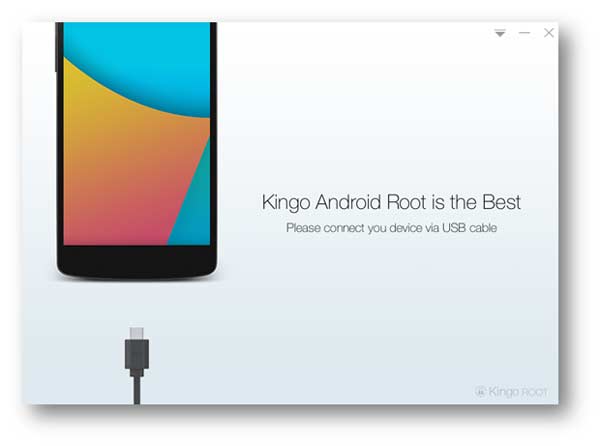
Step 1. Connect Android phone with computer
After downloading KingoRoot, install and launch it on your PC, and connect your phone with computer via USB cable
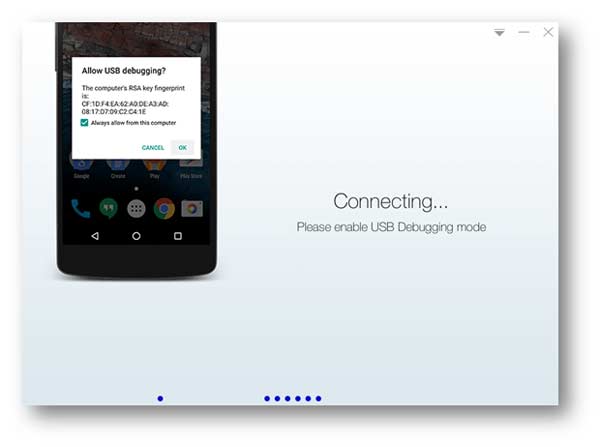
Step 2. USB debugging
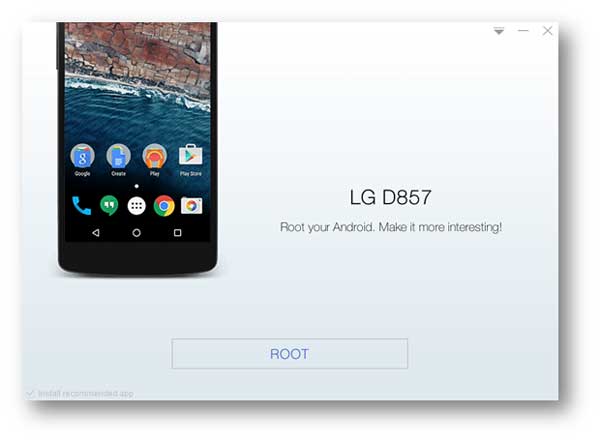
Step 3. Root Android easily
After your phone is detected by KingoRoot, you can see the version of your phone, and then click «Root» to get root access on your Android. Just be patient to wait the rooting process done.
Root Android without PC
Except for KingoRoot app on computer, you can root Android with KingoRoot APK on phone.
Step 1. Download KingoRoot APK
Just go to KingoRoot official website on your phone for downloading KingoRoot APK. Or you can download it from the link below.
Download Apk kingoroot
Step 2. Install KingoRoot on your phone
Step 3. Root Android phone
After installing KingoRoot, choose «One Click Root» to get your phone rooted.
How to Root an Android phone with KingoRoot on Mac
If you want to root Android phone with KingoRoot on your MacBook, we suggest you not to do this, because there is no safe and convenient root tool supporting rooting Android on Mac.
So you can check here to root your Android devices on PC or phone.
How to root my Android with KingRoot
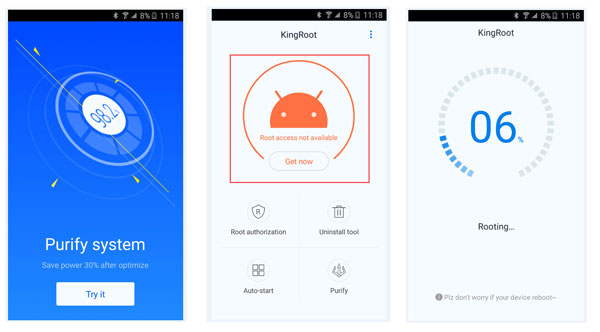
Like KingoRoot, KingRoot has two versions to root Android Phone, one is PC version, the other is APK version.
How to Root Android on computer
Please download KingRoot first
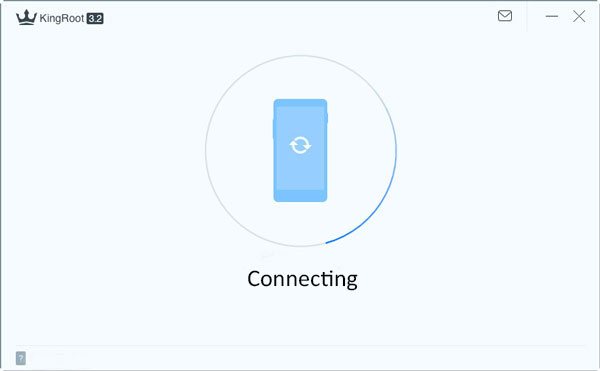
Step 1. Install KingRoot and connect your Android phone with computer
After downloading this root software, please install and open it on your computer, and plug your phone into computer with USB cable.
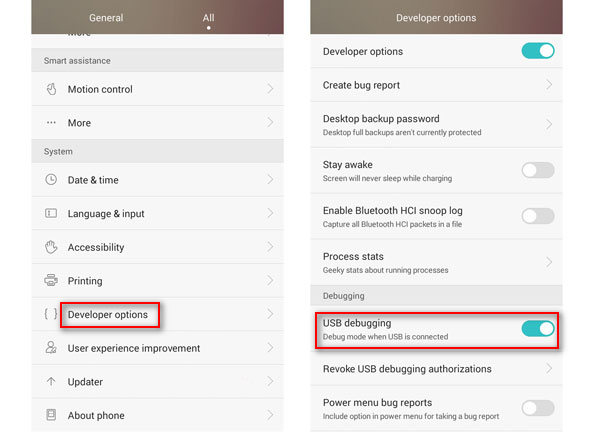
Step 3. Root Android with KingRoot
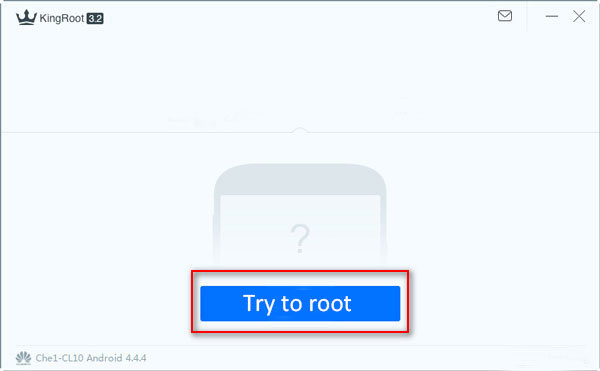
After KingRoot detects your phone successfully, click «Try to root». The rooting process will take some time and your phone will reboot automatically.
How do I root Android with KingRoot APK
Download KingRoot apk
Step 2. Install and open KingRoot APK
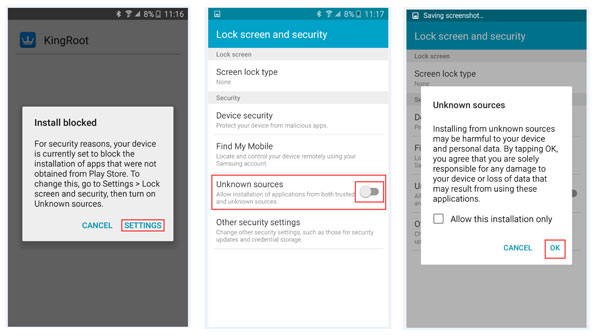
Step 3. Android root with KingRoot
How to root my Android with KingRoot on Mac
We suggest you not to root Android with KingRoot on Mac, because this operation may lead to your data loss and privacy leak. So you should get Android rooted on windows computer or with APK.
Rooting Android with iRoot
Root phone with iRoot on PC
Step 1. Install iRoot on your computer
After successful downloading, please install and launch it on your PC.
Step 2. Debug USB cable
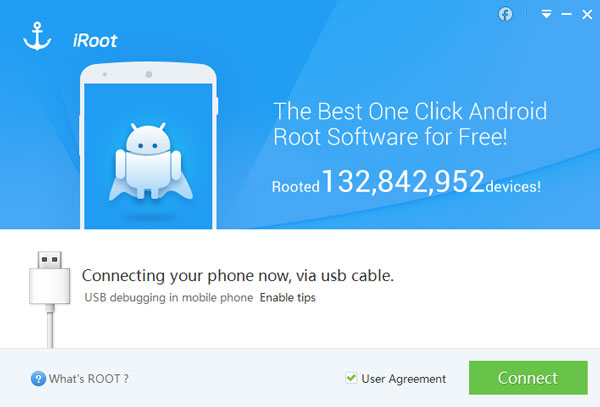
Step 3. Connect device with PC
Connect your phone with computer via USB cable, and the software will recognize it automatically.
Step 4. Root Android phone with iRoot
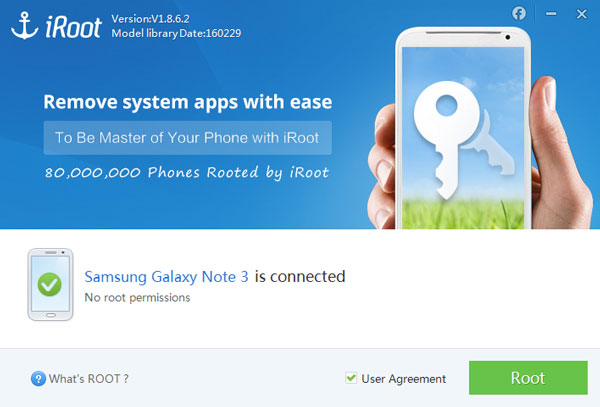
When you have successfully connect phone with computer, click «Root» on the rooting app. And you need to wait seconds for rooting. After that, your Android will reboot automatically.
Root phone with iRoot APK without PC
Step 1. Install iRoot APK on your phone
Download iRoot APK file to your phone. Then find it and install it on your Android phone.
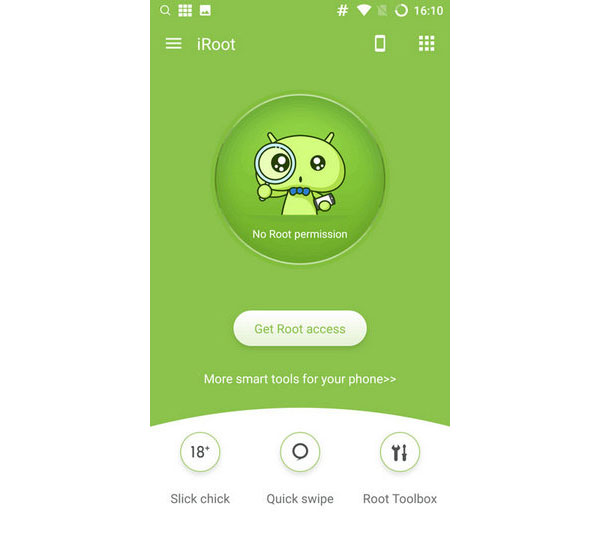
Step 2. Root Android with iRoot APK
Run iRoot on your Android device. After opening, click «Get Root access» for rooting your phone.
Rooting Android with iRoot on Mac
How to root Android with iRoot on Mac? It is a pity that there is no good method and tool to get Android rooted on Mac. So you need to root Android on PC.
Here is the guide for you: How to root Android with iRoot on PC and phone.
Root Samsung Galaxy S6 and S6 Edge via PingPong Root
PingPong Root is the professional rooting tool for Samsung Galaxy S7/S7 Edge and S6/S6 Edge. If your phone is Samsung Galaxy S7/S7 Edge or S6/S6 Edge, it is better to use PingPong Root for getting root access on your phone. Please download PingPong Root APK from Ping Pong websiter, or from the link below, and transfer it to your Samsung with USB cable.
Step 1. Install PingPong Root and Super SU
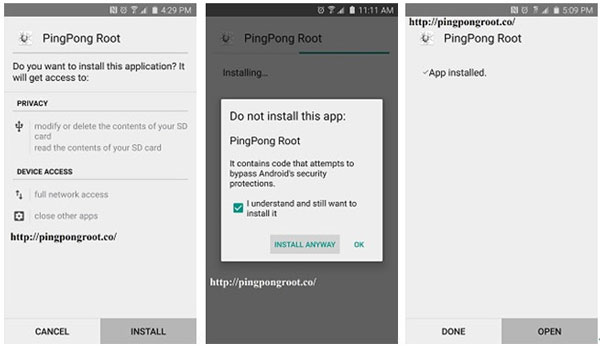
Step 2. Root your phone
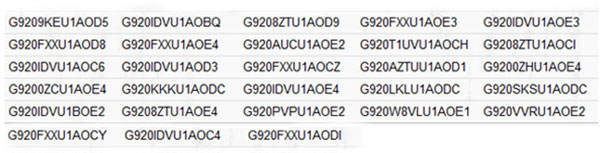
You need to open it on your Samsung, and you will see two options displaying on the app, «Get root!» and «Download Data».If your Samsung Galaxy S6 Edge is in the list of «Download Data» (as the picture below), then you should tab «Download Data» first, and then hit «Get root!» to start to root your phone. After rooting, just click «OK» to reboot your Samsung phone.
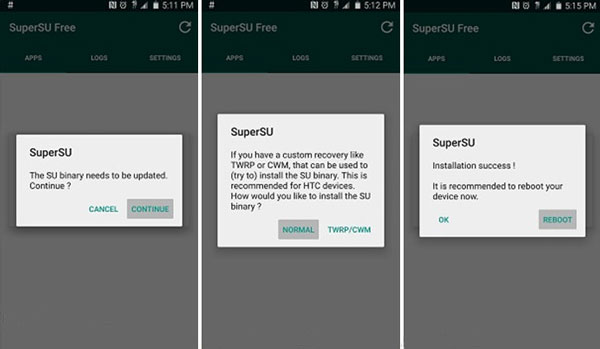
Step 3. Update Super SU
Root Samsung Galaxy S6 and S6 Edge via PingPong Root on Mac
We are sorry to tell you that there is no root tool can help you to root Android on Mac, so we recommend you to root Android phone with APK.
Root your Android phone via One Click Root
We have talked about how to root Samsung Galaxy S6 and S6 Edge with Ping Pong Root. Now, we introduce you how to root Samsung S4, S3 and other Samsung phones or LG/HTC/other Android phones with One Click Root.
Please download and install One Click Root on your computer.
Download one click root
Step 1. Debug USB
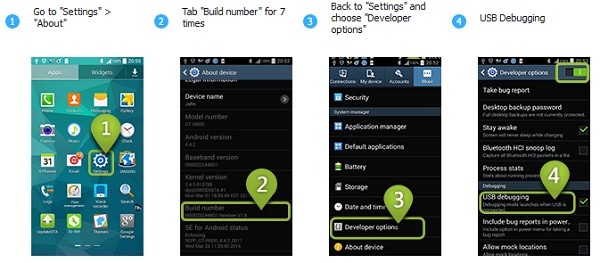
Step 2. Connect Android with PC
Connect your Samsung/LG/HTC/Sony phone with computer, and One Click Root will recognize your phone automatically.
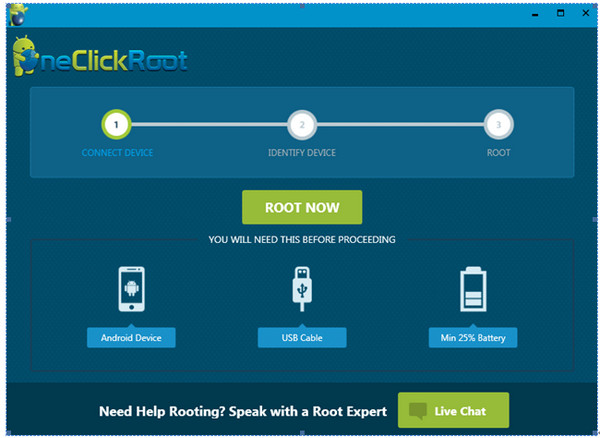
Step 3. Root Samsung with One Click Root
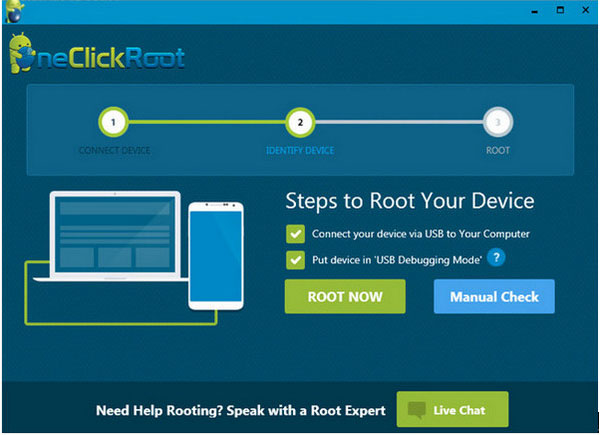
When the Samsung phone is detected, click «ROOT NOW» to begin to root your device. Please be patient with the process of rooting.
And after rooting, your phone will reboot automatically.
Root your Android phone via One Click Root on Mac
Also, there is no good way to root Android on Mac, as you maybe lose your previous data. So we suggest you to root phones on windows computer.
For now, we have introduced you five methods to root Android device, including KingoRoot, KingRoot, iRoot, PingPong Root and One Click Root to root Samsung/LG/HTC/Sony/MOTOROLA safely and easily. Just download the rooting tool suitable for you and begin to root. And just in case, if the rooting fails, you can recover your Android data with powerful Android Data Recovery.


