
If you’ve never set a root password on your MySQL database, you should be able to connect to it. However, this is not a good security practice as anyone can access your database.
If your database has a root password, but you lost track of it, this guide will help you reset a MySQL Root password on Linux and Windows.
- An existing MySQL database
- Access to a Linux or Windows server running MySQL
- Administrator privileges on the computer that hosts the MySQL database
- A text editor. Notepad is included by default in Window. Vim is installed by default in Linux.
- Access to a command-line interface (or terminal)
- Step 1: Log in as the MySQL User
- Step 2: Find the .pid File for the MySQL Service
- Step 3: Kill the mysqld Process
- Step 4: Create the Password File
- Step 5: Restart the MySQL Server and Apply the New Password
- Step 6: Cleaning Up
- How to Reset MySQL Root Password in Windows
- Step 1: Stop the MySQL server
- Step 2: Launch a Text Editor
- Step 3: Create a New Text File with the Password Command
- Step 4: Open a Command Prompt
- Step 5: Restart the MySQL Server with Your New Config File
- Step 6: Clean up
Step 1: Log in as the MySQL User
Step 2: Find the .pid File for the MySQL Service
The next step is to find the .pid file for the MySQL service.
Most systems store them in /var/lib/mysql/, /var/run/mysqld/, or /usr/local/mysql/data/ path. The filename usually starts with mysqld (or your system’s hostname) and ends with the .pid extension.
Step 3: Kill the mysqld Process
kill `cat /mysql-data-directory/host_name.pid`Replace mysql-data-directory/host_name.pid with the filename you found in the previous step. Ensure to specify the whole path to the file. Also, make sure to use the back-tick key (usually above the tab key) and not a single-quote mark in the beginning of the command.
Step 4: Create the Password File
1. Open your favorite text editor. In this example, we use vim:
sudo vimALTER USER 'root'@'localhost' IDENTIFIED BY 'NewPassword';
Bear in mind to include the single-quote marks and the semicolon. Replace NewPassword with the password you want to use. Finally, make sure to use a strong secure password, like these examples.
The command will work for the machine you’re currently using. If you’re connecting to a different system, replace localhost with the appropriate hostname.
3. Save the file to home/me/mysql-init.
Step 5: Restart the MySQL Server and Apply the New Password
mysqld --init-file=/home/me/mysql-init &This launches MySQL, and apply the text-file password change. Depending on how you start your server, you may need to add other options (such as --defaults-file before the init command.)
Step 6: Cleaning Up
Lastly, log into your MySQL server using the root account, and verify the new password works. Then, delete the file you created in Step 4.
Если вы забыли пароль root для базы данных MySQL или хотите его поменять в целях безопасности, нужно выполнить сброс пароля. В статье расскажем, как это сделать с помощью командной строки Windows.
1.Остановите сервер MySQL
- Проверьте, вошли ли вы в систему как администратор.
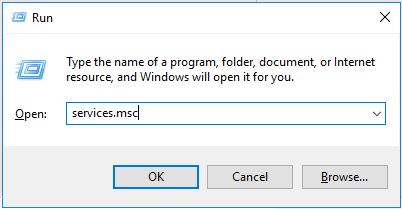
- Нажмите Win + R. Когда откроется окно «Выполнить», введите:
- Нажмите ОК.
- В списке служб найдите MySQL. Кликните правой кнопкой мыши по ней, после чего левой кликните Stop.
2. Измените пароль в текстовом редакторе
- В меню найдите «Блокнот», либо используйте путь: Меню > Стандартные Windows > Блокнот.
- Создайте новый текстовый документ с помощью команды пароля
- В текстовом редакторе введите строку:
- Проверьте, на месте ли кавычки и точка с запятой. Замените NewPassword своим новым паролем. «Файл» > «Сохранить как», чтобы сохранить файл в корень жесткого диска (C:\). Придумайте осмысленное имя файлу.
Команда localhost изменит пароль в вашей локальной системе. Если вы пытаетесь изменить пароль по сети, замените текущее имя хоста на localhost.
3. Запустите cmd
- Откройте командную строку и нажмите Ctrl+Shift+Esc.
- В меню выберите «Файл» > «Запустить новую задачу».
- Введите cmd.exe и установите флажок для запуска от имени администратора.
- Нажмите ОК.
Бесплатный тестовый доступ к облаку на 30 днейПолучить
4. Перезапустите сервер MySQL с обновлённым файлом конфигурации.
Чтобы перейти в каталог MySQL используйте командную строку:
cd «C:\Program Files\MySQL\MySQL Server 8.0\bin»
Вместо ИМЯ_ФАЙЛА вы вводите своё название, которое использовали в пункте 2.
5. Теперь можете зайти на свой сервер MySQL как root, введя новый пароль.
- Повторите вход с новым паролем, чтобы убедиться, что всё работает. Если у вас есть уникальные параметры конфигурации (например, запуск MySQL с параметром -defaults-file ), делайте всё, что нужно.
- После запуска MySQL и подтверждения смены пароля удалите файл C:\ИМЯ_ФАЙЛА.txt .
Вот и всё, вы благополучно сбросили пароль root для базы данных MySQL.
How to Reset MySQL Root Password in Windows
Step 1: Stop the MySQL server
2. Press Win+R (hold the Windows/Super key, and press “r”.) Once the “Run” box appears type:
services.msc3. Click OK.
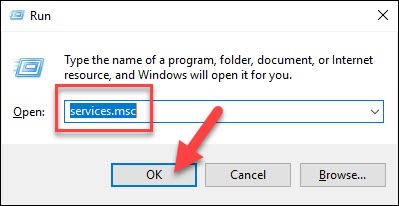
4. Scroll down the list of services to find the MySQL service. Right-click that entry, then left-click Stop.
Step 2: Launch a Text Editor
Click on the menu and search for Notepad.
Alternatively, you can use the path: menu > Windows Accessories > Notepad.
Step 3: Create a New Text File with the Password Command
ALTER USER 'root'@'localhost' IDENTIFIED BY 'NewPassword';Make sure you keep the quote marks and semicolon. Replace NewPassword with the password of your choice.

2. Use the File > Save As menu to save the file to the root of your hard drive (C: ). Choose a filename, such as mysql-init.txt.
Consequently, the localhost command makes the password change on your local system. If you’re changing the password on a system over the network, substitute the hostname for localhost.
Step 4: Open a Command Prompt
1. Press Ctrl+Shift+Esc.
2. Then, click on the File menu > Run new task.
4. Click OK.
Step 5: Restart the MySQL Server with Your New Config File
1. Navigate to the MySQL directory using the command prompt:
cd "C:\Program Files\MySQL\MySQL Server 8.0\bin"mysqld --init-file=C:\\mysql-init.txtNote that there are two slashes after the C: prompt.
Also, if you chose a different filename in Step 2, use that name after the double slash.
Step 6: Clean up
Now, you can log into your MySQL server as root using the new password.
Double-check to make sure it works. If you have unique configuration options (such as launching MySQL with a --defaults-file option), go ahead and do so.
Once MySQL launches, and you’ve confirmed the password change, delete the C:\mysql-init.txt file.
After reading this guide, you should be ready to reset the root password on MySQL in Linux and Windows. Granted, it is not too challenging, yet it is a secure way to change a sensitive password.


